Showing posts with label applications. Show all posts

Monday, August 1, 2011

Blackberry Applications : Documents To Go v2

Native Microsoft® Word, Excel®, PowerPoint® & PDF files on your BlackBerry® Smartphone


Documents To Go Premium Edition is an all-in-one solution that provides users with the ability to view, edit and create Microsoft Word, Excel and PowerPoint files and attachments as well as view critical PDF files all on their BlackBerry smartphones. Also included is an easy to use desktop application offering bi-directional file synchronization and providing users with a simple way to transfer and manage important documents.

What's New in Version 2.0?

- Desktop Application for File Synchronization: Windows users can now easily sync files between their computer and device via USB cable. Once the files are set to sync, any edits made will automatically be transferred upon synchronization.

- Enhanced PDF To Go: Updated version introduces many new features including: find and copy text, save as, send via email, bookmarks and more!

- Documents To Go Files: Smartphone file browser where users can access and manage (delete, rename, copy and paste) all of their Microsoft Word, Excel PowerPoint, Adobe PDF, and graphics in one centralized location.

- Open Password Protected Office 2007 Files: Open Microsoft Word and Excel (97-2007) files that are protected by a password.


Why Choose Documents To Go?

- Full featured: Documents To Go is not just a viewer, it's a complete solution with a full range of viewing AND editing features.

- Powered by InTact Technology: DataViz' acclaimed technology is the first and only way to ensure all original file formatting is retained once a file has been edited on a smartphone and forwarded on.

- Native: Open Word, Excel and PowerPoint files on your BlackBerry smartphone without any desktop or server conversion needed. Whether you receive files via email, the internet, Bluetooth or a media card, native document support means you'll always be able to open files regardless of how you get them to your device.

- Integrated: Documents To Go is tightly integrated with BlackBerry Enterprise Server 4.1.5 and BlackBerry Internet Service 2.5 for quick and easy native attachment downloading and uploading as well as support for existing IT policies, including new policies specific to Documents To Go functionality.

- Nothing new to learn: Documents To Go was designed and developed with the BlackBerry user in mind. Everything from SureType® to contextual menus to BlackBerry shortcuts are supported for a familiar look and feel.

- Native PDF too! PDFs are a mission-critical format many businesses need to support. Now through a bonus application called PDF To Go®, Premium Edition users can use native PDF files and attachments with ease.

Download:
PDF To Go
Documents To Go 2.0
documentstogo_2.0 PC
Serial.txt

Saturday, July 30, 2011

BlackBerry RightKey Master (BBRKM) v.1.4.0318 (Free for Windows Only)

BlackBerry RightKey Master (BBRKM)is a windows application for controlling your device. It's fully integrated with Windows' right-click context menu. If you need to deal with cod/jad/jar or something else, just right click on the file/folder and select the menu. You don't have to run any other program any more.

http://phantomberryatl.net/wp-content/uploads/2011/03/snap0061.png

Easiest way to install/remove CODs: BBRKM (BlackBerry RightKey Master) v1.4 released!!

FEATURES

All functions can be found on the right-click context menu. No need to run any PC program before install/remove BlackBerry apps
  • Install JAD/COD by double click on them!
  • Create ALX files for CODs
  • Multiple COD files support
  • Backup/restore 3rd party apps
  • Capture BlackBerry Screen and save as a PNG file
  • Convert JAR to COD
  • Wipe device
BBRKM is completely free.

REQUIRED
Win XP/Vista/Win7(32/64 bit) and all BlackBerry devices compatible
Visual C++ 2005 Redistributable Package
Microsoft .NET Framework 2.0 or above
Blackberry Desktop Manager or Drivers
Jar2cod needs BlackBerry JDE&JDK
INSTALLATION
Run BBRKM.*.exe as administrator. Please uninstall the old version before installing the new one.
UNINSTALLATION
Right click on “Start Menu” or any folder, select “BlackBerry RightKey Master”-”Help”-”Uninstall”.
THANKS xhotkey
Download:

BBRKM

Thursday, July 28, 2011

Blackberry Applications : Financial Calculator – Multi Purpose Calculator


Financial Calculator is a quick and multi-purpose calculator for brokers, lenders, realtors, businessman or investors.
Financial Calculator combines all the frequently used calculation together such as Mortgage, Investment, Retirement, Salaries, Tips, and Discount to make your business or life more convenient.

Features:
1) Mortgage calculation to allow users to calculate their loan, total interest, and total amount should be paid for their loan, or monthly payment.
2) Investment calculation includes different formula calculation on investment to provide users an easy way to calculate their investment. It includes P/E ratio, EPS, NTA, and ROE Dividend Yield for Equity calculation. Besides that, Mutual Fund Units calculation, and Fixed Deposit Calculation are included too.
3) Retirement calculation is available to allow users to plan their future retirement, and the amount should invest or save now.
4) Salaries Calculation is provided as a way to understand more on your current salary or yearly income.
5) Tips calculation helps you to calculate how much should be paid, and tips percentage of the payment. It is available to calculate the payment of the bill for each person.
6) Discount calculation allows you quickly find out the final price after applying the store’s discount.

(OFFLINE)

Download:
Financial | Calculator

Tuesday, July 26, 2011

Blackberry Applications : Yahoo! Messenger One v0.22.14 (Beta)

Yahoo! Messenger One BETA v0.22.14


Get social over the long-established, well-rounded chat and VoIP client Yahoo Messenger and you'll find drag-and-drop capabilities and contact importing from friends other IM, e-mail, and social-networking accounts who are also on Yahoo chat. Another favorite trick is the ability to see images and videos displayed inside the chat window when you or a pal drops in a public URL.
Yahoo Messenger 10 adds some visual enhancements that call out VoIP and video chats on the conversation window. Tweaks in the buddy list showcase an updates tab that operates as a newsfeed for friends' status messages. Other visual refreshes to version 10 spruce up select icons.
Users should note that the download stub will finish installing the program online, and that the download bundles the Yahoo Toolbar. In the preinstallation window, click over to Custom Install to deselect add-ons you don't want. We could also live without the heavy-handed Yahoo branding, and it would be nice to see a link to hidden smileys in the emoticon drop-down, but these are minor niggles when weighed against the benefits of an easy-to-use, feature-rich chat client that only continues to improve.
OTA ==>>


Download:
Yahoo | Messenger

Saturday, July 2, 2011

[Blackberry Apps] :Wifi File Transfer

Wifi File Transfer for BlackBerry allows the transfer of files from a PC or Mac directly to your BlackBerry over Wifi using your browser.
No need for Desktop Manager, Media Manager, USB drivers or any other 3rd party applications: Just a WiFi BlackBerry, PC/Mac with browser and a WiFi network.

What you need:- A BlackBerry (Wifi capable OS v4.5+) with Wifi File Transfer installed.

-A PC or Mac with browser

-A Wifi network.

Get Started:

- Make sure your device and PC or Mac are on the same WiFi network.

- Start “Wifi File Transfer” on the device. An IP address will be shown.

- Type this IP address into the PC or Mac browser and start browsing your BlackBerry! Upload and download files directly from the browser.

*Supported browsers: Firefox (recommended), Internet Explorer, Safari.
*Available for all Wifi capable BlackBerrys with OS v4.5 and above

Features:

* View the BlackBerry file system from the browser and transfer any files to and from device internal memory (900Mb for Bold) or SD card. Turn your BlackBerry into a memory stick!
* Upload movies, pictures and music directly to your BlackBerry and view them with the BlackBerry device Media Player.
* View and play pictures, music, PDF files etc. stored on your BlackBerry straight from the browser.
* Browse, rename, delete, and create new folders on the BlackBerry from either the browser or the device application itself.


Minimum Requirements:

* Blackberry (WiFi capable with OS v4.5 and above), PC or Mac with Firefox, Internet Explorer or Safari


Download and installation


I posted here two files, one for the new version, install it on your blackberry:

1) Plug in BlackBerry to PC with USB cable.
2) Double click load_application.bat


Trick to crack wififiletransfer:

The application is trial to crack it download the old version no need to install it, you can load it into the simulator cause only this old version can be cracked, and remember that the serial is the same for both version, once you get your registration code, put it on your the new version installed on your blackberry, now enjoy the last version with unlimited use.


1- must read this post first here
2- the serial is 6 characters alphanumerical, when you search for the serial, start searching for your pin code in the dump file, (remember to convert your hexadecimal pin to decimal, or you can find your pin in decimal on the software when it request to enter the serial) the real serial will apprear after your pin code.

Or you can use the keygen provided here
Download:
Old Version | New Version | Free

Wednesday, June 29, 2011

Blackberry Tutorial: How to install OTA themes

How to install an OTA download through your desktop?
Well, it’s a bit tricky but once you know how to do it, it’s almost as easy as installing a normal desktop installer download…

First of all, you will need to make sure that all downloaded OTA files are moved on the blackberries device memory or memory card.

Its easy to put it on the memory card, just connect the blackberry to your computer, enter the mass storage password on the blackberry when asked for and your memory card will pop-up on your computer as if it was a normal memory stick.

If you want to put the download in the device memory, you will need to have the desktop manager installed. When your desktop manager is booted you can go to the “media manager” and browse to the device memory under “my devices” make sure that the system is set to allow all files to be imported in the device memory.


Once you have uploaded all COD and JAD files you can disconnect the blackberry from the computer.

Now open the media application on the blackberry, and press the left button next to the trackball to open the full menu. Here you will need to click “explore”. Now browse to the location where your OTA download is installed.
Once you’ve located the jad and cod files, select the JAD file (it should be only 1 file) and click “open”. Now you will see the details about this file on your blackberry such as name, version and vendor. Here you will need to select the “download” button on the bottom of the screen. Once the application is downloaded you will be able to install or use the application.

You are now ready to use your blackberry OTA installation.

Sunday, June 26, 2011

BlackBerry RightKey Master (BBRKM) v.1.4.0318 (Free for Windows Only)

BlackBerry RightKey Master (BBRKM)is a windows application for controlling your device. It's fully integrated with Windows' right-click context menu. If you need to deal with cod/jad/jar or something else, just right click on the file/folder and select the menu. You don't have to run any other program any more.

http://phantomberryatl.net/wp-content/uploads/2011/03/snap0061.png

Easiest way to install/remove CODs: BBRKM (BlackBerry RightKey Master) v1.4 released!!

FEATURES

All functions can be found on the right-click context menu. No need to run any PC program before install/remove BlackBerry apps
  • Install JAD/COD by double click on them!
  • Create ALX files for CODs
  • Multiple COD files support
  • Backup/restore 3rd party apps
  • Capture BlackBerry Screen and save as a PNG file
  • Convert JAR to COD
  • Wipe device
BBRKM is completely free.

REQUIRED
Win XP/Vista/Win7(32/64 bit) and all BlackBerry devices compatible
Visual C++ 2005 Redistributable Package
Microsoft .NET Framework 2.0 or above
Blackberry Desktop Manager or Drivers
Jar2cod needs BlackBerry JDE&JDK
INSTALLATION
Run BBRKM.*.exe as administrator. Please uninstall the old version before installing the new one.
UNINSTALLATION
Right click on “Start Menu” or any folder, select “BlackBerry RightKey Master”-”Help”-”Uninstall”.
THANKS xhotkey
Download:

BBRKM

Thursday, June 16, 2011

Blackberry Apps: GIP

GIP: Generator IMEI/PIN


To whom is interested:

-->Having purchased a second hand blackberry and PIN is on an existing account and has not been released and therefore can only be removed by original owner
-->Having PIN suspended and/or reported as stolen
-->Having one of the following devices: 7xxx and 8xxx (except 8220, 8520, 8900) and 9000 (except some) others it may work, just try and let me know


GIP can generate a fresh IMEI and PIN for your BB and then you can register for a BIS/BES, but you have to check with your operator for data plan subscription


More info and tips:


How to run GIP and get your codes?

1- Copy all .sys files to c:\windows
regwipq.sys
regaemo0.sys
regaemo1.sys
2- Run GIP
3- You can chose between Old method or new generating method
4- follow the steps to generate your PIN and IMEI
5- Enjoy


How to change your BB's PIN and IMEI?

First you need:
- Radiolab Tool
- MML Setup and MFI Multiloader All files
- A copy of OS you want on your device (search in OS section)
- NET Framework 2.0


1. Connect your BB and make a back-up of anything on it you would like to keep as we will be erasing its contents including the OS.

2. Download and install NET Framework 2.0 if you don't have it on your computer

3. Download MML_Setup.exe and install it

4. Download MFI Multiloader All files, unzip it to "C:\MML" and overwrite all files

5. Connect your BB to your computer with usb cable. Do not start the desktop manager.

6. Open the MFI Multiloader, it will recognize your phone and will wipe all contents from the phone.

7. Look at the screen on your BB while the program is compiling, when the screen shows a large 1 in the upper left corner, close the multiloader.

8. Open the Radiolab Tool. It contains a program which looks similar to CDMA Workshop. Under the available views tab there is a tab marked ID. Highlight the ID tab.

9. Make sure your BB is still connected to your computer. Click the connect button located in the top left corner of the Radiolab Tool. On the lower screen it shoould say connected.

10. On the right screen you will see IMEI, BSN, BBPIN, and other lines. Click read on the IMEI line, it will read the IMEI from your phone. Replace the old IMEI with the new IMEI you want on your phone. Click write and it should be written to your phone.

11. On the BBPIN line click read. Replace the old BBPIN with your new Pin and click write.

12. After writing the pin click the disconnect button located next to the connect button on the radiolab tool.

13. Now all you have to do is load your OS back onto your BB.(don't ask me how to, you can load it with the loader or with the nojava comand, a lot of sotware are availaible).


Downloads:

GIP v4.1


Radiolab Tool


MML Setup


MFI Multiloader 2.013 all files


NET Framework 2.0


And... finaly good luck and welcome to the BES/BIS world

Tuesday, May 3, 2011

Unlocking BlackBerry with MFI Multiloader

I want to share my experience with unlocking BB 8120, which was locked to Orange UK. It worked for me, and it should work for other models. I did serious research and this is procedure that came up:


1. Install Blackberry Desktop Manager. I recomend latest version ~version: 5.0.1 B49; size: 258MB
(download link: http://na.blackberry.com/eng/services/desktop/ ).

2. Next one is NET Framework. Install it. ~version: 2.0; size: 22.4MB.
( download link: http://go.microsoft.com/fwlink/?linkid=32168 )

3. Download and install latest OS for your device ~size: 90+MB.
( BlackBerry Desktop and Device Software Download Sites: http://na.blackberry.com/eng/support...load_sites.jsp )
~choose network on which phone is locked

~3.a Delete vendor.xml from C:\Program Files\Common Files\Research in Motion\Apploader

4. Download and install MFI Multiloader ~version:2.0.1.3.; size: 718MB
( download link~torrent: http://thepiratebay.org/torrent/4579...0.1.3_10_files )

~4.a MFI Multiloader short setup tutorial: In downloaded archive notice all8files.rar ( 8 parts ), and MMLSetup. Extract them and run MMLSetup.msi. Extracted files from all8files.rar put in folder MML, and after finished installation overwrite installed MML folder with extracted. ( path~C:\MML )

5. Disconnect from Internet before starting procedure!

6.
-Now you can start with unlocking. Open MFI Multiloader, and connect your device. Application will automaticly start process.

-You can see reading, writing etc...Just wait until MFI shows you PASS.

-On your phone screen will be shown "1". Disconnect it, and type START

-After finishing this operation phone can show you message like "error 507" or "no application linked"...don't worry, it's "normal".

-Your phone is unlocked now, but you'll need to reinstall OS and set it up.


Code:
~ Short reinstall/install procedure tutorial:

1. Open Blackberry Desktop Manager
2. Connect device
3. Select "Application Loader"
4. Select "Add/Remove Applications"
5. Choose applications and extras, and click Next
6. Wait until DM finish operation.
Code:
~ Troubleshooting( I had this problems, if you get others post it and i'll try to help )

1. Device could not connect on MFI Multiloader.
     ~ Copy BbDevMgr.exe from the C:\MML\bin\, and overwrite same one in the location C:\Program Files\Common Files\Research In Motion\USB Drivers\

2. MFI Multiloader shows FAIL.
     ~ You can get this message if your MFI Multiloader version is older. Download newest, and just repeat process.
Code:
~Mass Storage Fix 
After everything, I successfully adjusted device, but I had problem with Mass Storage detection ( sometimes phone cannot connect on PC as Mass Storage ).
Use fix.; run mass storage activator.bat ( see atachment )

I hope this helps
Download:
Mass Storage

Friday, April 29, 2011

How to Install Files into Your Blackberry

 For new blackberry users, this is for you :)

here is all senarios that you may encounter installing Apps/Games/Themes or anyother things


The Various File Types You Will Encounter:

-.JAD files: An application descriptor that stores information about the application itself and the location of .COD files

-.JAR files: a JAR file (or Java ARchive) is used for aggregating many files into one. It is generally used to distribute Java classes and associated metadata.

-.COD files: A COD file is a proprietary file format developed by RIM that contains compiled and packaged application code.

-.ALX files: Similar to the .JAD file, in that it holds information about where the installation files for the application are located


For JAR files (You need a memery card)

1. Download to .JAR to your PC
2. Link your Blackberry to your PC via the USB cable
3. Open "Computer" in the Start Menu
4. Go to the folder/location on your PC where you stored the .JAR file
5. Either copy or cut the file (In case there's any oopses, best to copy)
6. In the Drive/Device list under the "Computer" screen find your Blackberry
7. Paste the file either into the root of Blackberry or a subfolder, either will suffice.
8. Unhook Blackberry from USB cable
9. In the applications on your phone (or on home screen depending on Theme) scroll to the "Media" icon
10. Click the "Media" icon to launch it
11. Press the menu button and select "Explore"
12. Locate the .JAR file either on the device memory or memory card (check both as the Blackberry seems to just sort of stick system memory and card memory together lol)
13. Click the file, and it should prompt you to download (install)
14. Click "Download" and follow instructions


For JAD files (You need a memory card)

The JAD files always come with .COD or .JAR files in the same archive (or folder) so use the same method as describer for JAR files to install the JAD files but when you transfert file to your blackberry, you have to transfer also the .COD file/files and put it/them in the same folder as .JAD

If the JAD file doest come with .COD or .JAR, that means its an OTA file.
you can also use the same method as installing JAR file but you need to have internet connection, cause the JAD file will request the connection to the server to download the COD files.


For ALX files (you need a desktop manager)


1.Navigate to a download link for any piece of third party software you like and download the required installation files to your desktop.
2.Once you have downloaded the desired application to your desktop, you may have to unzip/extract the contents to a new folder. Inside your newly created folder you will find a file that ends in .alx
3.Connect your BlackBerry via USB to your computer and launch the BlackBerry Desktop Manager.
4.In the menu you will see an option for “Application Loader”. click this and you will see a screen appear that displays all the applications currently loaded on your BlackBerry.
5.Above the list of currently installed BlackBerry applications you will see a button that says “Add”. Click on this button to bring up the add application dialog box.
6.Navigate to the folder that you have saved on your desktop in the previous step and locate the .alx file contained within. Choose OK and this application will appear in the list with all of your other installed software.
7.If you have downloaded multiple pieces of software to install, you can go ahead and click the add button again and navigate to the next .alx file and click OK. Repeat this process for each additional third party application you wish to install.
8.Once all desired applications have been introduced into the application loader, verify that they each have a check mark next to them and click the button labeled “Next” which appears below the list of applications.
9.You will see the BlackBerry Desktop Manager run through a process and your BlackBerry may restart.
10.Upon reboot of your BlackBerry you will see all of your newly installed applications on the applications screen of your device.


For advanced user

For COD files that doesn't come with ALX or JAD files (You have a memory card)

You can install them using:

BBSAK manager


Or MCP (Blackberry Master Control Program)


-Connect your bb with USB and follow the instructions given to upload COD files into your BB


Or you can use also Aerize card reader
-Download it from here
-Transfer the COD files to you Memory card and open Aerize Card loader
-Chose the file you want to install and in option chose "Load"


For COD files that doesnt come with ALX or JAD files (You don't have a memory card)

You only can use BBSAK or MCP


Note: there is other tools that can install COD files, but here i chosed BBSAK and MCP coz its easy to use it

Thursday, April 28, 2011

BlackBerry Master Control Program (MCP)

BlackBerry Master Control Program (MCP) by: Darren Winter


THIS IS THE LATEST STABLE RELEASE

BlackBerry Master Control Program (MCP) is a power tool for BlackBerry devices designed for basic, moderate and advanced users.

You can use BlackBerry Master Control Program (MCP) to (Basic) take screenshots (including auto-capture and auto-save), set the device time, turn the radio/on off, recover memory, gather information, view/clear event logs, display modules, gather module information, create ALX/JAD files, backup and restore third party applications, (Advanced) handheld wipe (all 3 types), factory reset, load, save and erase modules. The Operating System Management page allows you to completely manage and optimize any OS you want to install on your device. The Javaloader CLI page offers a 1:1 GUI for javaloader.exe.

MCP allows you to keep an unlimited number of OS's installed on your PC but at the time you actually install an OS to your device MCP only lets RIM's Application Loader "see" the OS you had selected inside MCP. Most OS 101 articles tell you to uninstall all other OS's from your PC before you begin the process. This is time consuming to say the least. MCP allows you to keep multiple BlackBerry OS's installed on your computer and keep them in their current (possibly optimized) state for later use at any time.

Any controls that can potentially harm your device are blocked from use until you enter a passphrase... so even new users can't do any harm using it until they know what they are doing.

MCP is 100% unrestricted, donations are always welcome. Registration allows users to remove the PayPal Donate button.

THIS IS A DESKTOP APPLICATION


BlackBerry Master Control Program (MCP) - Copyright © 2009 by Darren Winter.

Download:
Program

Wednesday, April 27, 2011

Blackberry Apps : Full Fixmo Extend v1.0.228 [Beta]

Fixmo Extend v1.0.228 [Beta]

Features

* Get connected quickly with an elegant user interface
* Handy charts and metrics help you monitor your data usage
* A simple download of mobile and desktop applications to get connected

Requirements

* BlackBerry (OS 4.6 and greater)
* Windows PC (Windows XP or greater)
* Microsoft .Net Framework (2.0 or greater)
* BlackBerry Desktop Software (available from RIM)
* A mini-USB cable to connect your laptop to your BlackBerry

Mobile Application Screenshots


Desktop Application Screenshot


Download:

Fixmo

Tuesday, April 26, 2011

Download Blackberry Applications : BuzzMe Premium v2.9.15

BuzzMe Premium v2.9.15 


BuzzMe Premium is the ultimate utility for controlling how your BlackBerry alerts you, and is based on the successful BuzzMe and BuzzMe Pro from BigTinCan.

BuzzMe Premium is powered by an easy to use interface that allows you to control vibration and LED. You can set custom colors (choose from 15 colors including 5 Disco modes and MyColor for your own personal color), and vibration times for calls, SMS, MMS and emails.

BuzzMe Premium also includes features that gives you control over the vibration and LED color for a number of extra services including BlackBerry Messenger, Facebook, MySpace, Twitter, BeejiveIM, and more.

If you want the ultimate in phone alerting control - you need BuzzMe Premium.

Features:

* Customizable LED color and individual repeating vibration alert for
* - BlackBerry Messenger
* - Facebook
* - MySpace
* - Twitter
* - BeejiveIM
* - BlackBerry Email
* - SMS / MMS
* - Calls
* Create your own customized LED colors
* Auto restart after battery pull
* Turn off alert when on phone
* Turn off vibration in your Storm by putting it face down
* Integrated support

BlackBerry OS 4.2, 4.3, 4.5, 4.6, 4.7 Non-Touch, 5.0 Non-Touch)

Download:
Full | Buzz

Saturday, January 22, 2011

How to Perform a Clean Uninstall/Reinstall of BlackBerry Desktop Software

I came across a couple nice article on the BlackBerry Technical Knowledge Center today. I know the question has been asked a few times before, so I figured I would post the details.

How To - Perform a clean uninstall of BlackBerry Desktop Software
How To - Register the atl.dll file
Note: I have combined the two articles into one set of instructions.


How to Perform a Clean Uninstall/Reinstall of BlackBerry Desktop Software

Details

The clean uninstall procedure removes all traces of the BlackBerry Desktop Software. It consists of six tasks.

1. Uninstall the BlackBerry Desktop Software.
2. Delete the Research In Motion® folders from the registry.
3. Delete the Pumatech Shared folders from the registry (if present).
4. Delete the Research In Motion folders from your hard drive.
5. Delete the Pumatech Shared folder from your hard drive (if present).
6. Restart your computer.
7. Register alt.dll (reinstall only).


Task 1 - Uninstall the BlackBerry Desktop Software

To uninstall

1. Close BlackBerry Desktop Manager.
2. Open the Control Panel and double-click the Add/Remove Programs icon.
3. Select BlackBerry Desktop Software and click Change/Remove.
4. On the InstallShield Wizard window, click the Remove option, followed by Next.
5. On the Confirm Uninstall window, click OK.
6. On the InstallShield Wizard window, click Finish.


Task 2 - Delete the Research In Motion Folders from the Registry

To delete the Research In Motion folders

1. Click Start > Run.
2. Type Regedit, and then click OK.
3. In Registry Editor, delete the Research In Motion folder located in HKEY_CURRENT_USER\Software\
4. Delete the Research In Motion folder located in HKEY_LOCAL_MACHINE\Software\
Note: This key will not be present if you are removing Desktop Manager version 4.0.
5. Leave the Registry Editor open to complete the next task.


Task 3 - Delete the Pumatech Shared Folders from the Registry (If Present)

Pumatech Shared folders only exist in the registry prior to Desktop Manager version 4.0 service pack 1.

To delete the Pumatech Shared folders

1. In Registry Editor, delete the Puma Technology folder located in HKEY_CURRENT_USER\Software\
2. Delete the Puma Technology folder located in HKEY_LOCAL_MACHINE\Software\
3. Close the Registry editor.


Task 4 - Delete the Research In Motion Folders from Your Hard Drive

If you are using Windows 2000 or Windows XP

1. Open Windows Explorer.
2. Delete the Research In Motion folder in C:\Program Files\
Note: This key may not be present if you are removing Desktop Manager version 4.0.
3. Delete the Research In Motion folder in C:\Program Files\Common Files (if present).
4. Delete the Research In Motion folder in C:\Documents and Settings\<user name>\Application Data\
Note: If you are unable to see the Application Data folder, it might be a hidden system folder. See the Additional Information section for instructions on how to display hidden files and folders.
5. If you were using Desktop Manager version 4.0 service pack 1, delete the BlackBerry Desktop folder in C:\Documents and Settings\<user names>\Application Data\.

If you are using Windows 98 or Windows ME

1. Open Windows Explorer.
2. Delete the Research In Motion folder in C:\Program Files\
3. Delete the Research In Motion folder in C:\Windows\Application Data\


Task 5 - Delete the Pumatech Shared Folder from Your Hard Drive (If Present)

The Pumatech Shared folder exists prior to Desktop Manager version 4.0 service pack 1.

To delete the Pumatech Shared folder from your hard drive, open Windows Explorer and delete the Pumatech Shared folder in C:\Program Files\Common Files\

If you were using Desktop Manager 4.0.1, remove Pumatech software from your hard drive by opening Windows Explorer and navigating to C:\Program Files\Research In Motion\BlackBerry\Pumatech Desktop Setup
Note: Any synchronization software for other personal digital assistants (PDAs) that use the Pumatech Shared folder must be reinstalled after the BlackBerry Desktop Software is uninstalled.
If you are unable to delete the Pumatech Shared folder, rename it by completing the following steps:

1. Right-click the Pumatech Shared folder and select Rename.
2. Rename the folder (for example, Pumatech Shared_old).
3. Press Enter.


Task 6 - Restart the Computer

The desktop software should now be fully uninstalled. Restart the computer to make sure that all background processes are cleared from system memory.


Task 7 - Register alt.dll (reinstall only)

Before you re-install the desktop software, register the atl.dll file.

To register the atl.dll file, complete the procedure that corresponds with the Microsoft® Windows® operating system you have installed on your personal computer.


For Windows 98, ME, or Windows NT® 4.0

1. Open a command prompt. For example, click Start > Programs > Accessories > Command Prompt.
2. Depending on your operating system, type one the following at the command prompt and press ENTER:
* For Windows NT 4.0, type cd c:\winnt\system32
* For Windows 98 and ME, type cd c:\windows\system
3. Type regsvr32 atl.dll and press ENTER. A message indicates that the registration was successful.
4. Type exit and press ENTER.
5. Restart the computer.


For Windows 2000 or XP

1. Click Start > Run.
2. In the Run window, type regsvr32 atl.dll and click OK. A message indicates that the registration was successful.
3. Restart the computer.

Friday, January 21, 2011

Blackberry : How to Remove IT Policy

Important: If you're still connected to a company BES, and simply want to install the latest and greatest third party application I would not recommend this approach. Talk to your BES administrators and ask them to grant you the appropriate rights. There are two problems in using this guide to bypass your company's security policy. First, whenever you reconnect to the company server, your security settings will revert back to how they were. Second, and perhaps more importantly, you run the risk of getting fired. Use of this procedure will sever the tie between your BlackBerry and your company BES and you will need to reactivate in order to reestablish the connection.

Method 1: IT Policy Removal For Devices with OS 4.5 and higher (Preferred)

The preferred method for removing IT policy is to update your device to OS 4.5 or higher (if possible) and use JL_Cmder's "resettofactory" command or the resettofactory command that is included in Loader.exe that installs with Desktop Manager (or any BB OS) to remove ALL IT policy, Firewall restrictions and Application Permission settings. After you've upgraded to OS 4.5 or higher, simply backup the device using Desktop Manager, close Desktop Manager, then run JL_Cmder and execute the "resettofactory" command or if you don't have JL_Cmder, just do the following:

1. Go to Start >Run and type CMD (you can also find the command prompt in Programs >Accessories.)

A command box will open.

2. Type the following exactly including spaces: cd c:\program files\common files\research in motion\apploader

You should now see that path followed by the cursor.

3. Now type: loader.exe/resettofactory


After using JL_Cmder or the cmd prompt method above, the device will do a security wipe of the device; (meaning wipe your data but leave the OS, DO NOT use the "Wipe" command in JL_Cmder) then reboot leaving the OS, 3rd party apps but no data AND, best of all, NO IT policy whatsoever. When you're done, simply restore your backup and you're good to go with no policy or locked firewall. You can downgrade back to the old OS if you desire, too.


If your 7xxx or 8xxx device is running OS 4.2 or lower (look in Options >About) and you can't upgrade it to OS 4.5 or higher you will NOT be able to use method 1 above and you will need to use method #2 below:


================================================== ================================================== ================================================

Edit 04/16/2010: Since the procedure below is no longer needed on most of the current devices in use, the procedure below is no longer necessary in most cases and therefore the blank policy used is no longer available for download. I will leave the instructions posted so that they can be used to remove the policy.bin file from a PC if it gets left there inadvertently. Please refer to Method 1 above to remove the IT Policy from your device. If your device is running OS 4.2 you will need to update it to 4.5 before removing the policy using the method above.

Method 2: Placing Blank IT Policy on the Device(OS 4.2 and earlier devices ONLY)
Quote:
WARNING!
Follow these instructions only if you know what you are doing.
These instructions can actually downgrade certain BlackBerry's abilities (i.e. permanent loss of support for Bluetooth keyboards) if your BlackBerry actually does not already have an IT policy installed. These instructions are meant as a last resort to regain BlackBerry capabilities, in the event your BlackBerry is encumbered by a restrictive leftover IT policy after removal from a BES and you are unable to upgrade to OS 4.5 or higher and use Method 1 above. (i.e. eBay purchased older BlackBerry)
Removing IT Policy.


This procedure should ONLY be used on devices that cannot be upgraded to OS 4.5 or higher. If you have a device that can be upgraded to OS 4.5 or higher DO NOT USE THIS PROCEDURE. Use Method 1 described above. If you have an older device that cannot be upgraded to OS 4.5 then continue with the following instructions. This is a How-To for removing IT policy from your BB. In essence, what this does is apply a blank IT policy to the device. The blank IT policy does, unfortunatly, leave some IT policy firewalls in place, however. For instance "keystroke injection" is set by default to "deny" on most IT policies. This blank policy won't give back "allow" for this feature. This becomes a problem if you desire to use a Bluetooth keyboard. You'll be unable to use the keyboard. If a way is found to get this back then I'll edit this post accordingly. A quick check to see if your BB is under IT policy can be done by going to Options/Security on your Device. If you see any references to IT Policy whatsoever, then you have a potentially restrictive IT Policy that can be removed. The Disclaimer/Intended Use. This guide is intended for use by people that own their own Blackberry, and for whatever reason, have inherited a company's IT policy on their device. Really, there are two scenarios where this guide is useful.
  • You bought a Blackberry on eBay and are unable to make changes to the settings or install Third Party Applications.
  • You have a Blackberry that was previously connected to a company's BES and, for whatever reason, you no longer intend to connect to that BES.
Important: If you're still connected to a company BES, and simply want to install the latest and greatest third party application I would not recommend this approach. Talk to your BES administrators and ask them to grant you the appropriate rights. There are two problems in using this guide to bypass your company's security policy. First, whenever you reconnect to the company server, your security settings will revert back to how they were. Second, and perhaps more importantly, you run the risk of getting fired.
Procedure: Step 1 Ensure the Blackberry Desktop Manager is installed using Blackberry Internet Service, and not Blackberry Enterprise Server. If you are unsure, it would probably be a good idea to uninstall the Desktop Manager and start again. If you don't have the CD that came with your Blackberry, the Software can be downloaded here.

Step 2 Download the file Policy.bin (this file has been removed...see note in red above) and save it in your Blackberry installation directory (C:\Program Files\Research In Motion\BlackBerry).

Step 3 Wipe your Blackberry, creating a backup if necessary. Select Options/Security/Wipe on the Device. If this option is unavailable, you may have to install the latest software on your Blackberry. You need to Download and install the latest OS for your device. Connect your device, open the Desktop Manager, select Application Loader, and follow the prompts.

Step 4 Close the Desktop Manager if it is open.

Step 5 From the Windows XP Start Menu select Run..., and at the prompt type regedit. In the tree on the left hand side, navigate to:

HKEY_Current_Users\Software\Research In Motion\BlackBerry\PolicyManager

Right-Click the Policy Manager Folder and select New/String Value. Name the value Path. Now, Double-Click the Path Subkey and set Value Data to:

C:\Program Files\Research In Motion\BlackBerry\policy.bin

Step 6 Open the Desktop Manager.

Step 7Connect the Device. Verification Once complete, the Options/Security screen on your Blackberry should not contain references to an IT Policy, you should now be able to change all settings (including password prompts), and install Third Party Applications.

A big thanks to 7100simpleisbetter and barjohn of BlackberryForums.com for this BB saving procedure.

I personally wrote this policy so that there would be no question as to what it does to your device. Here is the code included in the Policy.bin above: (If you have comments or questions or you see something that should be changed, please contact me in this thread or via PM.)


IMPORTANT Note: After following the instructions in method 2, any BB connected to your Desktop Manager will have this policy applie to it. For that reason it is highly recommended that after finishing placing this blank policy to the restricted BlackBerry I recommend removing the policy.bin and the registry entry you added from your computer. Basically go back and reverse these instructions. If you don't then you risk plugging in a new BB or someone else's BB with NO policy and adding this blank policy to it as well.

Code:
;
;***************************************************************************
 
;;;;;;;;;;;;;;;;;;;;;;;;;;;;;;;;;;;;;;;;;;;;;;;;;;;;;;;;;;;;;;;;;;;;;;;;;;;;
;;
;; Desktop Manager Configuration
;;
;;;;;;;;;;;;;;;;;;;;;;;;;;;;;;;;;;;;;;;;;;;;;;;;;;;;;;;;;;;;;;;;;;;;;;;;;;;;
 
; If application is shown on task bar.
HideWhenMinimized {default} = true
 
; Prompt the user when the Desktop Manager starts.
MessagePrompt {default} = Welcome to the Desktop Manager.
 
; To enable or disable the USB-Serial converter
EnableUSBconverter {default} = true
 
; Control whether the Application Loader is available to the user.
ShowApplicationLoader {default} = true
 
; Control whether if offline IT Policy warning prompt should be displayed.
ShowPolicyErrMsg {default} = true
 
; Control the length of time the device password is cached by Desktop Manager. (Minutes)
DesktopPasswordTimeout {policy} = 10
 
; This setting controls whether or not Desktop add-ins are permitted.
; When set to false, no desktop add-in code will be executed.
AllowDesktopAddIns {policy} = true
 
; Indicates whether or not the desktop software will allow the user to switch devices.
AllowDeviceSwitch {policy} = true
 
;;;;;;;;;;;;;;;;;;;;;;;;;;;;;;;;;;;;;;;;;;;;;;;;;;;;;;;;;;;;;;;;;;;;;;;;;;;;
;;
;; Synchronization
;; Synchronize for PIM,Email and Folder Management defaults.
;;;;;;;;;;;;;;;;;;;;;;;;;;;;;;;;;;;;;;;;;;;;;;;;;;;;;;;;;;;;;;;;;;;;;;;;;;;;
 
 
; This setting allows you to specify whether or not you would like PIM 
; information to be synchronized when the user selects the Synchronize Now 
; button from the Intellisync dialog.
SynchronizeNowPIM = true
 
; This setting allows you to specify whether or not you would like Email
; information to be synchronized when the user selects the Synchronize Now 
; button from the Intellisync dialog.
SynchronizeNowEmail = true
 
; This setting allows you to specify whether or not you would like the date and 
; time to be synchronized when the user selects the Synchronize Now button from 
; the Intellisync dialog.
SynchronizeNowDateTime = true
 
; This setting allows you to specify whether or not you would like PIM 
; information to be  to be automatically synchronized when the handheld 
; is connected to the PC.
AutoSynchronizePIM = false
 
; This setting allows you to specify whether or not you would like Email
; information to be  to be automatically synchronized when the handheld 
; is connected to the PC.
AutoSynchronizeEmail = false
 
; This setting allows you to specify whether or not you would like Date and Time
; information to be  to be automatically synchronized when the handheld 
; is connected to the PC.
AutoSynchronizeDateTime = false
 
; This setting allows you to specify whether or not you would like to synchronize 
; folders instead of performing an import.
SyncFoldersInsteadOfImport = true
 
; This setting allows you to specify how information conflicts between the handheld 
; and the PC encountered during synchronization are handled. If set to true, desktop 
; information is used. If set to false, handheld information is used.
FolderConflictDesktopWins = true
 
; This setting allows the enabling or disabling of wireless email reconcilation.
AllowWirelessEmailSynchronization = true
 
; This setting allows the wireless calendar synchronization functionality to be disabled.
DisableWirelessCalendar = false
 
;;;;;;;;;;;;;;;;;;;;;;;;;;;;;;;;;;;;;;;;;;;;;;;;;;;;;;;;;;;;;;;;;;;;;;;;;;;;
;;
;; Redirector Settings
;;
;;;;;;;;;;;;;;;;;;;;;;;;;;;;;;;;;;;;;;;;;;;;;;;;;;;;;;;;;;;;;;;;;;;;;;;;;;;;
 
; Append signature on out going messages
AutoSignature = -----------------\
Sent from my BlackBerry Handheld.
 
; Forwards messages to the handheld
ForwardMessagesToHandheld = true
 
; Allows user's to receive mail when handheld is connected to cradle
ForwardMessagesInCradle = true
 
; Setup filter rules for email redirection
FilterRuleFile = c:\myfilters.rfi
; When filter rules don't apply, forward or don't send messages
ForwardWhenRulesDontApply = true
 
; When sending a message from handheld, don't save a copy in my 'Sent Items' folder
DontSaveSentMessages = false
 
;;;;;;;;;;;;;;;;;;;;;;;;;;;;;;;;;;;;;;;;;;;;;;;;;;;;;;;;;;;;;;;;;;;;;;;;;;;;
;;
;; Backup/Restore Configuration
;;
;; These value control the setting in "Backup and Restore Options" dialog
;;;;;;;;;;;;;;;;;;;;;;;;;;;;;;;;;;;;;;;;;;;;;;;;;;;;;;;;;;;;;;;;;;;;;;;;;;;;
 
; This value control the value of the "Automatically backup my handheld" setting
; in the options dialog, which is enables or disables prompted Automatic Backups.
AutoBackupEnabled = true
 
; This value indicates how often an AutoBackup is performed in days.
AutoBackupFrequency = 7
 
; This setting controls the exclusion of Email and synchronized data from the
; automatic backup. If set to true, the "Backup all handheld application data"
; radio button is selected.
AutoBackupIncludeAll = true
 
; This setting allows control over whether email is excluded from automatic backups
; (when AutoBackupIncludeAll is false).
AutoBackupExcludeEmail = false
 
; This setting allows control over whether synchronized application data is excluded
; from automatic backups (when AutoBackupIncludeAll is false). "Synchronized data" is
; that data which is configured for synchronization with Intellisync; this varies
; according to the user's preferences.
AutoBackupExcludeSync = false
 
;;;;;;;;;;;;;;;;;;;;;;;;;;;;;;;;;;;;;;;;;;;;;;;;;;;;;;;;;;;;;;;;;;;;;;;;;;;;
;;
;; WebLink Configuration
;;
;; These values control the appearance and behaviour of the WebLink extension.
;;;;;;;;;;;;;;;;;;;;;;;;;;;;;;;;;;;;;;;;;;;;;;;;;;;;;;;;;;;;;;;;;;;;;;;;;;;;
 
; Setting this value to false prevents the WebLink icon from being displayed.
ShowWebLink = true
 
; This setting specifies the URL that will be used when the WebLink
; icon is activated.
WebLinkURL = www.your_network_here.com/go/downloads
 
; This setting controls the label that is displayed for the WebLink icon.
WebLinkLabel = Downloads
 
;;;;;;;;;;;;;;;;;;;;;;;;;;;;;;;;;;;;;;;;;;;;;;;;;;;;;;;;;;;;;;;;;;;;;;;;;;;;
;;
;; Device Security Settings
;;
;;;;;;;;;;;;;;;;;;;;;;;;;;;;;;;;;;;;;;;;;;;;;;;;;;;;;;;;;;;;;;;;;;;;;;;;;;;;
 
; Determine if the password is required on device
PasswordRequired {policy} = false
 
; Determine if the user can disable the password
UserCanDisablePassword {policy} = true
 
; Minimum length of the password.
; Valid range is 1 to 12 characters, inclusive.
;
; This value indicates the minimum length of an acceptable device
; security password.
MinPasswordLength {policy} = 1
 
; Password Pattern Checks
; Valid range is 0 or 1 at this time
;    0 -> no checks
;    1 -> ensure password has at least on letter and one digit
PasswordPatternChecks {policy} = 0
 
; Suppress Password Echo
;
; Option to disable password echo after x numbers of fail attempts to unlock handheld.
; false -> Disable
; true -> Enable
;
SuppressPasswordEcho {policy} = false
 
; Maximum device security timeout.
; Valid range is 1 to 60 minutes, inclusive.
;
; The handheld user is permitted to select any security timeout value
; less than this value.
MaxSecurityTimeout {policy} = 60
 
; Password Timeout
; Valid range is 0 to 60 minutes, inclusive.
;
; Set the effective password timeout on handheld.  This value must be 
; less than that of the MaxSecurityTimeout.
SetPasswordTimeout {policy} = 0
 
;
; If set, forces the device to the lock screen when it is holstered
ForceLockWhenHolstered {policy} = false
 
; Determine if the user can change the timeout
UserCanChangeTimeout {policy} = TRUE
 
; Password aging.
; Valid range is 0 to 365.
; 
; Specifying a value of 0 indicates password aging is disabled. Other
; values specify the maximum age of the password before the handheld
; user is prompted to change it.
MaxPasswordAgeInDays {policy} = 0
 
; Password History
; Valid range is 0 to 15
;
; Specify the number of passwords to retain for checking. Passwords in password history cannot be used when 
; setting a new handheld password.
;
MaximumPasswordHistory {policy} = 0
 
 
; Maximum Password Attempts
; Valid range is 3 to 10
;
; Set the maximum number of  password attempts on handheld. 
;
SetMaximumPasswordAttempts {policy} = 10
 
; Indicate if Long Term Security Timeout is enabled/disabled
;
; If true, handheld long term timeout is enabled
; If false, handheld long term timeout is disabled.
LongTermTimeoutEnable {policy} = false
 
; Attachment Viewing
;
; Controls the ability to view email attachments on the handheld.  
; If set to true then users can view attachments on the handheld 
AllowAttachmentViewing {policy} = true
 
; Policies that control the behaviour of third party applications
; on Java-based handhelds.
AllowThirdPartyUseSerialPort {policy} = true
AllowExternalConnections {policy} = true
AllowInternalConnections {policy} = true
AllowSplitPipeConnections {policy} = true
DisallowThirdPartyAppDownloads {policy} = false
 
; Policies that control the behaviour of the handheld Browser application
;
; DefaultBrowserConfigUID {default} = "BlackBerry Browser"
; MDSBrowserTitle {default} = "YourCompany Intranet"
; HomepageAddress {default} = www.your_network_here.com
; HomepageAddressReadOnly {policy} = true
; EnableWAPConfig {policy} = false
 
 
;;;;;;;;;;;;;;;;;;;;;;;;;;;;;;;;;;;;;;;;;;;;;;;;;;;;;;;;;;;;;;;;;;;;;;;;;;;;
;;
; Policies that apply to the TLS protocol. 
;;
;;;;;;;;;;;;;;;;;;;;;;;;;;;;;;;;;;;;;;;;;;;;;;;;;;;;;;;;;;;;;;;;;;;;;;;;;;;;
 
 
; TLS Disable Invalid Connection
; Disallow users to connect to a server with an invalid certificate (i.e revoked, expired, etc ).
; Value: 0=true,1=false,2=prompt on device
TLSDisableInvalidConnection {policy} = 1
 
; TLS Disable Untrusted Connection
; Prevent TLS connections to untrusted servers.
; Values: 0=true,1=false,2=prompt on device
TLSDisableUntrustedConnection {policy} = 2
 
; TLS Disable Weak Ciphers
; Disable use of weak ciphers during a TLS connection.
; Values: 0=true,1=false,2=prompt on device
TLSDisableWeakCiphers {policy} = 2
 
; TLS Minimum Strong DH Key Length,
; Valid range 512 to 4096
TLSMinimumStrongDHKeyLength {policy} = 1024
 
; TLS Minimum Strong ECC Key Length
; Valid range 160 to 571
TLSMinimumStrongECCKeyLength {policy} = 163
 
; TLS Minimum Strong RSA Key Length
; Valid range 512 to 4096
TLSMinimumStrongRSAKeyLength  {policy} = 1024
 
; Disable the use of any cipher that is not FIPS compliant.
TLSRestrictFIPSCiphers {policy} = false
 
; TLS Minimum Strong DSA Key Length
; 
; Set the minimum DSA key size allowed for use during a TLS connection.
; Range: 512 - 1024 bits in 64 bit increments
TLSMinimumStrongDSAKeyLength {policy} = 1024
 
;;;;;;;;;;;;;;;;;;;;;;;;;;;;;;;;;;;;;;;;;;;;;;;;;;;;;;;;;;;;;;;;;;;;;;;;;;;;
;;
;; Messaging Settings.
;;
;;;;;;;;;;;;;;;;;;;;;;;;;;;;;;;;;;;;;;;;;;;;;;;;;;;;;;;;;;;;;;;;;;;;;;;;;;;;
 
; Indicate if PIN to PIN messaging is permitted.
;
; If true, handheld users are permitted to use the PIN to PIN messaging
; feature. If false, this capability is hidden from the handheld user.
AllowPINtoPIN {policy} = true
 
; Indicate if the specification of BCC recipients is permitted.
;
; If true, handheld users can specify BCC recipients when composing messages.
; If false, this capability is unavailable to handheld users.
AllowBCCRecipients {policy} = true
 
; Indicate if SMS messaging is permitted.
;
; If true, handheld users are permitted to send SMS messages.
; If false, this capability is unavailable to handheld users.
AllowSMS {policy} = true
 
; Indicate if the RIM phone application can be used on the handheld.
;
; If true, handheld users are permitted to use the handheld's phone.
; If false, users are not permitted to use the handheld's phone.
AllowPhone {policy} = true
 
; Indicate if the RIM web browser can be used on the handheld.
;
; If true, handheld users are permitted to use the handheld's web browser.
; If false, users are not permitted to use the handheld's web browser.
AllowBrowser {policy} = true
 
; Indicate if other email services are permitted on the handheld.
;
; If false, no other email service books (other than the Enterprise
; edition one) are permitted on the handheld. Any other existing email
; service books are removed when the policy is installed; while the
; policy is in effect, other email service books will be rejected by the
; device. This forces all outbound email to be routed through the
; organization's BlackBerry Enterprise Server. 
;
; If true, no restrictions are applied to email service books.
AllowOtherEmailServices {policy} = true
 
; Indicate if other browser transport services are permitted on the handheld.
;
; If false, no other browser transport service books (other than the
; Enterprise edition one) are permitted on the handheld. In this case,
; any other existing browser transport service books are removed when the
; policy is installed; while the policy is in effect, other browser transport
; service books will be rejected by the device. This forces all browser
; traffic to be routed through the organization's BlackBerry Enterprise Server. 
;
; If true, no restrictions are applied to browser transport service books.
AllowOtherBrowserServices {policy} = true
 
;;;;;;;;;;;;;;;;;;;;;;;;;;;;;;;;;;;;;;;;;;;;;;;;;;;;;;;;;;;;;;;;;;;;;;;;;;;;
;;
;; Owner Information
;;
;;;;;;;;;;;;;;;;;;;;;;;;;;;;;;;;;;;;;;;;;;;;;;;;;;;;;;;;;;;;;;;;;;;;;;;;;;;;
 
; Owner Name - if value = '*' use the registry setting
OwnerName {default} = Research In Motion Ltd.
 
; Owner Info - if value = '*' use the registry setting
OwnerInfo {default} = bbb
;;;;;;;;;;;;;;;;;;;;;;;;;;;;;;;;;;;;;;;;;;;;;;;;;;;;;;;;;;;;;;;;;;;;;;;;;;;;;
;;
;; Other Info
;;
;;;;;;;;;;;;;;;;;;;;;;;;;;;;;;;;;;;;;;;;;;;;;;;;;;;;;;;;;;;;;;;;;;;;;;;;;;;;

Thursday, January 20, 2011

Blackberry Applications : JL_Cmder


What is JL_Cmder?
JL_Cmder stands for JavaLoader Commander. JavaLoader is a command line tool provided by BlackBerry. JL_Cmder simplifies accessing the most commonly used JavaLoader commands.


Update 11/21/2010: v1.9.3
Whats new in v1.9.3?
Now works with Windows 7 and on 64bit OS.
Fixed verbage on a couple of screens.
Updated JavaLoader.exe.
No functionality changes.
Fixed 1.9.2 install issue.

Update 11/20/2010: v1.9.2
Whats new in v1.9.2?
Now works with Windows 7 and on 64bit OS.
Fixed verbage on a couple of screens.
Updated JavaLoader.exe.
No functionality changes.

Are there any system requirements?
Yes. You must install BlackBerry Desktop Manager or BlackBerry USB and Modem Drivers. Both are available from the BlackBerry website.

What can JL_Cmder do?
Below is a brief overview of the available commands.
  1. deviceinfo - Displays information about the handheld.
  2. eventlog - Retrives and displays the handheld event log.
  3. screenshot - Takes a picture of the handheld screen. (OS 4.0.2+ required)
  4. wipe - Erases the handheld OS. Not really, but that is the simpleist way to explain it. After using the "wipe" command the device will be completely inoperative until the OS is reinstalled. (Error 507 will be displayed on the device)
  5. resettofactory - Removes the IT Policy from the device and wipes the device of personal data while leaving the OS installed and usable. (OS 4.3+ required).
NOTE: If you want to use an unlisted JavaLoader command select Command-Line Usage from the menu. This will display JavaLoader help information including syntax and all available commands.

Installation Instructions
  1. Download JL_Cmder.
  2. Extract executable.
  3. Double-click on executable.
    Vista Users: Right-click on executable and select Run As Administrator.
NOTE: Do NOT use JL_Cmder to "wipe" your device if you are just wanting to wipe your personal data from the device and leave it as it was out of the box. If you use the "wipe handheld" option in JL_Cmder your device will be rendered useless (Error 507) until you reload the entire OS. If you just want to wipe your personal data but leave the OS you can use the "wipe handheld" in the Options >Security Options >General Settings Menu on your device or, if your device has OS 4.3 or higher, use the "resettofactory" command in JL_Cmder. The only difference between the "wipe handheld" in the Security Options on the device and "resettofactory" in JL_Cmder is that "resettofactory" also removes the IT policy on 4.3 and higher OS devices.

Do NOT use JL_Cmder to wipe your device if your device is working fine and are simply attempting to upgrade your OS and you can't get the OS to load or be recognized by Desktop Manager or Loader.exe.
Doing so will most likely render your device useless until you find the root cause of why the OS will not load to the device. Generally, this is caused by not deleting the vendor.xml file(s) or USB issues with the PC.
 
Download:

http://www.ziddu.com/download/13440066/ISO-8859-1__JL_Cmderv1.9.3.zip.html

Wednesday, January 19, 2011

Nuked (Rebooting) BlackBerry? Here is your Fix!

Is your BlackBerry nuked? When your BlackBerry is stuck in a reboot sequence, the BlackBerry is considered "nuked". However, there is a solution to this problem. Please follow the steps below


Fundamentals
The problem is that because the device is stuck in a permanent reboot sequence (or loop) it does not allow a proper connection via USB to desktop manager, and as a result, you do not have a chance to reload the Operating system. Important: Before following this procedure, remove your memory card and see if this solves the problem. A memory card issue can put your BlackBerry into this state.


Requirements
  • Windows Machine
  • Latest BlackBerry Desktop Manager Download Here
  • Latest BlackBerry Operating System Download Here
  • USB Cable appropriate to the device
Procedure
  1. Step 1
    Make sure your BlackBerry is not connected to the computer and Desktop Manager is closed. Locate and Open the Application Loader program. You can find it on your Operating System hard drive (C: Drive). Open your file browser, and navigate your way through the folders to Program Files -> Common Files -> Research In Motion -> AppLoader

    Once there, you will find a program named "Loader" Double click on this and open Loader.

    Click Next
  2. Step 2
    You are now at the trickiest part. This needs your full attention. Plug in your BlackBerry while you are at the above screen. Where it says Com1. The second it says USB-PIN:UNKNOWN immediately click next. This will only happen for a few seconds when your BlackBerry is at the beginning of its reboot cycle (or loop). The easiest way to make this happen instead of waiting.. is to pull the battery, and wait right after the battery is reinstalled.
    http://www.blackberryfaq.com/nuked/nuked3.png
  3. Step 3
    At this point, your in the home stretch. While updating, your BlackBerry is out of the reboot cycle. Select whatever applications you would like the apploader to install and continue through the apploader.
    http://www.blackberryfaq.com/nuked/nuked3.png
    http://www.blackberryfaq.com/nuked/nuked3.png
    http://www.blackberryfaq.com/nuked/nuked3.png
  4. Step 4
    That's it. You now have a BlackBerry with a crisp and clear operating system. Open up Desktop Manager and load the latest backup of your device. If you do not have a backup, unfortunately it means a fresh start, everything on the device has been lost.
Hope this helps!

Tuesday, January 18, 2011

How to enable HTML email on your BlackBerry

If you are looking to get HTML email on your Blackberry, here are the requirements and process.


A) Your BB device must have Operating System version 4.5 loaded to your device. OS 4.5 is not officially released for ALL BB models yet. Those officially released are listed in our specific model sections here on these Forums in the Sticky Notes at the top of each model section.Check your current OS version on your BlackBerry at Options > About. Look at the third line down, starting with "v.4..."

If you don't find OS 4.5 for your model listed, please don't ask for outside links to not-yet-released OS versions. The latest OS versions are always listed on this forum.

Upgrade instructions for any model are simple:
  1. Download the new OS you want and install it to the PC
  2. Delete the vendor.xml file located in c:\program files\common files\research in motion\apploader
  3. Plug in BB and open Desktop Manager
  4. Select Application Loader
  5. You will be prompted to upgrade
B) Enable BIS 2.5 - From your BlackBerry, or PC, go to your carrier BIS site and resend your Service Books.
  1. Log into your providers BIS site from your handheld (see your personal email setup icon) or from your PC.
  2. Click the link to resend the service books.
You should receive a new Registration message to your device if the Service Books were sent successfully.

C. Configure your email now for HTML.
  1. On your BlackBerry, to go the Messages folder.
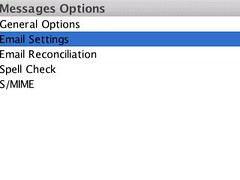
  2. Click the Menu key (left of trackball)
  3. Click Options
  4. Click Email Settings
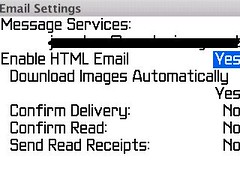
  5. *Enable HTML Email = YES.
  6. *Download Images Automatically = Yes


*If you don't see these options, it is likely that your service books have not been updated. You may need to do a "hard reset" on your BlackBerry by removing the battery from the device with it powered ON, hold a few seconds, and replace the battery to reboot.

D. Receive an email on your device, and enjoy HTML.
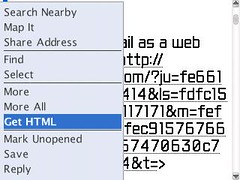
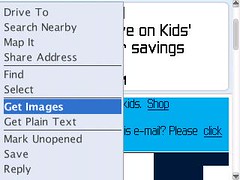
  1. After opening your email, tap the Menu key and select "Get Images".
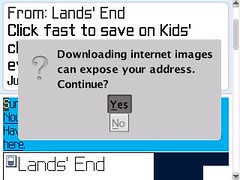
  2. Click YES to the warning message that "internet images can expose your address"...
  3. You will need to click "Get Images" on each email on which you wish to view images.
*Emails received before your upgrade will not be viewable in HTML, only those received after.

NOTE: Some users have reported the HTML images would not appear until they had their TCP/APN settings enabled. On your BlackBerry, look at Options > Advanced > TCP. If the settings are blank, follow the instructions in this link to set yours and save the settings. You may need to remove the battery on your BB and reboot after entering the APN, etc., in order for it work.


**Further Note: If you have performed all of the above instructions, and still don't see HTML email options on your mail,
OR, your HTML email has worked, and stopped working, try this:
1. Remove your email account from the BIS.
2. Delete your Service Books on the BB. (Options > Advanced > Service Books) Delete those pertaining to your email containing the @ symbol and your email address.
3. Remove battery and reboot the BB.
4. Confirm the Service Books are not on the BB.
5. Reset the account on your BIS.
6. Resend the Service Books from your BIS.
7. You should get a Registration message from AT&T, on your BB. If not soon, pull the battery and reboot the BB again.
8. Turn on your HTML email again from you Message options.

Monday, January 17, 2011

FreE AppLicAtiONs BlaCkBeRRy FrEE DoWnlOad

[UPDATE]: New Version! v3.0.79 <- Attachment Fixed


Take control over your backlight. Want it to stay on longer or not turn off when running a specific application?

When running certain applications you are limited to your default backlight time out of just a few seconds. Ever wanted to way to just leave the backlight on? Using Google Maps for navigation and the screen keeps turning off? Leave It On is the solution for you.
Now with animated Pop-up Alerts! Its 2 apps in 1. Pop-ups will notify you of new messages and pressing the trackball or BB key will launch that app (clicking pop-up on Storm)*.

Leave It On will change the way you use your BlackBerry device!

Built-in pop-up/backlight support for: AIM, BBM, Beejive, Cnectd e-mail, Facebook, BBM Groups, GTalk, Gmail, ICQ, IM+, Skype, Social Scope, SMS, Trillian, Twitter for BB, UberTwitter, WhatsApp, WLM, Yahoo.

E-mails and SMS now support full message preview! Emails can be marked as read, replied, forwarded and deleted right from the pop-up!

Free trial available.

Example applications usage for Leave It On for automatic backlight:
-Google Maps
-Shazam
-GPS applications
-Media Player
-Web Browser
-Blackberry Messenger
-Weather Apps (WeatherBug, Berryweather with Radar Maps)
-TuneWiki
-Kindle Reader

Please Note: A reboot (battery pull or soft reset) may be required after 1st installation.

* SMS can only be launched from Pop-up on QWERTY keyboard devices.

Features:

* Leave the backlight on automatically for up to 8 applications. Just launch the application and Leave It On will automatically keep the backlight on for you.
* Keep the backlight on while charging, through USB, car charger or regular charger.
* Low battery setting. Disable the backlight from staying on when the battery falls below a certain percent (configurable)
* Set how long to keep the backlight on for, settings from 1 minute to 2 hours or never.
* System wide "Leave It On" menu option so you can leave the backlight on at the click of a button
* Customize pop-up options, text colour, duration to stay on screen, custom animations and more
* Turn on the screen and popup options built in for over 17 applications
* Backup and restore settings from SDCard


Minimum Requirements:

* OS 4.5
 

Display Dimensions
240x240, 240x260, 240x320, 320x240, 360x400, 360x480, 480x320, 480x360
Operating System
4.5, 4.6, 4.7 Non-Touch, 4.7 Touch Screen, 5.0 Non-Touch, 5.0 Touch Screen, 6.0 Non-Touch, 6.0 Touch Screen

Download:
http://www.ziddu.com/download/13171780/ISO-8859-1__Leave_It_On_v3.0.79.rar.html
Keygens

Sunday, January 16, 2011

DownlOad FreE BLaCKBerry LighTing KEyBoArd AppLIcatiONs

Where there is Storm, there is lightning. Lightning Keyboard - makes a perfect Storm!

BlackBerry Storm (Storm2) is great. If there is anything to complain, it is the built-in keyboard. Lightning Keyboard fundamentally changes the way you type on touch-screen BlackBerry - easy and productive to type, minimal and convenient to configure, fun and amusing to use, extending your phone's lifetime by avoiding the mechanical impact of old way of typing.

Seeing is believing. Free trial for 100 times of typing. Buy today to lock down the introductory price, and get unlimited free upgrades!

Lightning Keyboard is developed by Ottafone Inc, a proud partner of RIM. All rights reserved. Patent pending. For more information, please visit Ottafone website.

Features:
Easy to pin-point a letter to type
iPhone style typing prompt
Flexible way (touch or touch&hold or press) to type
More common characters on the spot
Redo/Undo functions
Convenient and fun typing sound control
Typing history for quick copy
Navigation assistance
And more ...

Minimum Requirements:
BlackBerry Storm or Storm2 (OS4.7.0 and above)

Display Dimensions
360x480, 480x360
Operating System
4.7 Touch Screen, 5.0 Touch Screen, 6.0 Touch Screen

Serial: Easy to find with Olly or Winhex (8 Character key with letters and numbers)
     
Download:
http://www.ziddu.com/download/13171519/kibornyala.zip.html

Serial:
http://lovingblackberry.blogspot.com/2010/12/how-to-get-serial-for-your-blackberry.html