Showing posts with label hack. Show all posts

Wednesday, May 4, 2011

How To Check Official OS your HandHeld from All Vendor (Blackberry Device OS Checker)

1. Open Web Address:
http://www.avella.name/bboschecker.php

2.Enter your number model handheld that you wanna check official OS, eg:8900 (javelin),then click search cariers button.


3.Wait for a second,until searching process finish


4.All official from blackberry vendor/carrier will show up,check the new OS from all vendor and get the link.

Tuesday, May 3, 2011

Unlocking BlackBerry with MFI Multiloader

I want to share my experience with unlocking BB 8120, which was locked to Orange UK. It worked for me, and it should work for other models. I did serious research and this is procedure that came up:


1. Install Blackberry Desktop Manager. I recomend latest version ~version: 5.0.1 B49; size: 258MB
(download link: http://na.blackberry.com/eng/services/desktop/ ).

2. Next one is NET Framework. Install it. ~version: 2.0; size: 22.4MB.
( download link: http://go.microsoft.com/fwlink/?linkid=32168 )

3. Download and install latest OS for your device ~size: 90+MB.
( BlackBerry Desktop and Device Software Download Sites: http://na.blackberry.com/eng/support...load_sites.jsp )
~choose network on which phone is locked

~3.a Delete vendor.xml from C:\Program Files\Common Files\Research in Motion\Apploader

4. Download and install MFI Multiloader ~version:2.0.1.3.; size: 718MB
( download link~torrent: http://thepiratebay.org/torrent/4579...0.1.3_10_files )

~4.a MFI Multiloader short setup tutorial: In downloaded archive notice all8files.rar ( 8 parts ), and MMLSetup. Extract them and run MMLSetup.msi. Extracted files from all8files.rar put in folder MML, and after finished installation overwrite installed MML folder with extracted. ( path~C:\MML )

5. Disconnect from Internet before starting procedure!

6.
-Now you can start with unlocking. Open MFI Multiloader, and connect your device. Application will automaticly start process.

-You can see reading, writing etc...Just wait until MFI shows you PASS.

-On your phone screen will be shown "1". Disconnect it, and type START

-After finishing this operation phone can show you message like "error 507" or "no application linked"...don't worry, it's "normal".

-Your phone is unlocked now, but you'll need to reinstall OS and set it up.


Code:
~ Short reinstall/install procedure tutorial:

1. Open Blackberry Desktop Manager
2. Connect device
3. Select "Application Loader"
4. Select "Add/Remove Applications"
5. Choose applications and extras, and click Next
6. Wait until DM finish operation.
Code:
~ Troubleshooting( I had this problems, if you get others post it and i'll try to help )

1. Device could not connect on MFI Multiloader.
     ~ Copy BbDevMgr.exe from the C:\MML\bin\, and overwrite same one in the location C:\Program Files\Common Files\Research In Motion\USB Drivers\

2. MFI Multiloader shows FAIL.
     ~ You can get this message if your MFI Multiloader version is older. Download newest, and just repeat process.
Code:
~Mass Storage Fix 
After everything, I successfully adjusted device, but I had problem with Mass Storage detection ( sometimes phone cannot connect on PC as Mass Storage ).
Use fix.; run mass storage activator.bat ( see atachment )

I hope this helps
Download:
Mass Storage

Sunday, May 1, 2011

How to Make BlackBerry As Modem For Laptop

HOWTO: BlackBerry As Modem For Laptop

Introduction
Did you know that BlackBerry can now be used just like an external modem for a laptop computer, so that a laptop can have full Internet access? This is useful when you need to do certain things that a BlackBerry cannot yet do. Increasing numbers of success reports have caused me to post this message. (Note: Mark Rejhon has not himself yet successfully used a BlackBerry as a modem; I am aggregating information). Sometimes, it is still tricky to set up a BlackBerry as a modem for a laptop, but this feature is becoming more and more common in cellphones, and BlackBerry models are following suit.
.
Credits
Credit goes to Scoobydoo, bfrye, bollar, VitaminB, jmounts, webtoker, dozment for their contributions.
.
Supported BlackBerry Models
Model 710X: Success (Rogers, T-Mobile)
Model 7290: Success (Rogers, AT&T, Cingular, T-Mobile)
Model 7250: Success (Verizon)
Model 8700: Success (Rogers, Cingular)
Model 7130e: Success (Verizon, Bell Mobility)
Model 7510/7520/7230/7280/7730/7780/7100i: Use www.mobishark.com
All Older Models: Use www.mobishark.com
.
IMPORTANT:
Other Models Than Listed Above: There is no modem built in. However, you can use third-party modem software called Shark Modem at www.mobishark.com
.
Supported Carriers
Carrier AT&T: Success!
Carrier Rogers: Success!
Carrier Vodafone: Success!
Carrier T-Mobile: Success!
Carrier Verizon: Sometimes Successful
Carrier Cingular: Sometimes Successful
Carrier Nextel/Telus: May need to use www.mobishark.com
Carrier Sprint: May need to use www.mobishark.com
Carrier Bell Mobility: 7130e Confirmed, Must use www.mobishark.com otherwise
Currently, Rogers, AT&T, T-Mobile, and Vodafone UK are reported to work. Sometimes and Cingular works, but is much harder to setup. No confirmations for other carriers yet.
Important: If you are using a BES 4.0 server, your BES 4.0 server, you should not use the "Disable IPmodem" setting. BES hosting providers such as eOutlook/Mailstreet/BES4U/MyBlueberry must avoid setting the "Disable IPmodem" setting.
.
Connect Your BlackBerry
Make sure your BlackBerry is connected by USB cable, and your BlackBerry Handheld Manager is running (just launch BlackBerry Desktop to run it.) This is necessary for using the BlackBerry as an external modem. You cannot use BlackBerry as a modem unless you have BlackBerry Handheld Manager running in the background!
.
Modem Driver Install
If you installed a recent version of BlackBerry Desktop that came with a 7100t, 7290, 7250, or 7520, it should include modem drivers and already be automatically installed. In the event you need to manually install them, the modem drivers should be located in this directory:
C:\program files\Common Files\Research In Motion\Modem Drivers
However, if you are having problems with these drivers, uninstall, delete all leftover RIM files, and then reinstall the latest version of BlackBerry Desktop.
.
Verify The Modem Driver Is Functioning
Go to Control Panel -> Phone & Modem Options. In the Modems tab, you should see a new Standard Modem on a new port (such as COM6 or COM11). Click Properties -> Diagnostics -> Query Modem. You should see the following:
Quote:
ATQ0V1E0 - OK
AT+GMM - BlackBerry IPmodem
AT+FCLASS=? - OK
AT#CLS=? - OK
AT+GCI? - OK
AT+GCI=? - OK
ATI1 - Research In Motion / BlackBerry IPmodem
ATI2 - Research In Motion / BlackBerry IPmodem
ATI3 - Research In Motion / BlackBerry IPmodem
ATI4 - Research In Motion / BlackBerry IPmodem
ATI5 - Research In Motion / BlackBerry IPmodem
ATI6 - Research In Motion / BlackBerry IPmodem
ATI7 - Research In Motion / BlackBerry IPmodem

Note: This may look different on Nextel 7520, or Sprint/Verizon/Bell Mobility 7250. This is normal. Just make sure there is a response at all, rather than no response.
.
IMPORTANT SPECIAL CONFIGURATION STEP
Click Properties -> Advanced and add only ONE of the following Extra initialization commands with the appropriate carrier-specific APN Setting:

TMOBILE USA Users (Success!)
+cgdcont=1,"IP","wap.voicestream.com"

Rogers Users (Success!)
+cgdcont=1,"IP","internet.com"

Cingular Blue/AT&T Users (Success!)
+cgdcont=1,"IP","proxy"

Cingular Orange Users (Success!)
+cgdcont=1,"IP","ISP.CINGULAR"

UK Vodafone Users (Success!)
+cgdcont=1,"IP","internet"

Verizon Users (Success!) - Keep blank
Nextel/Telus iDEN Users (untested) - Keep blank
Sprint/Bell Mobility CDMA Users (untested) - Keep blank
.
Add A New Internet Connection
Close the Phone and Modem Options and the Control Panel. Create a new connection with Start -> Connect To -> Show all connections -> Create a new connection.
Quote:
1. Click Next

2. Select "Connect To The Internet" then Next

3. Select "Set up my connection manually" then Next

4. Select "Connect using a dial-up modem" then Next.

5. Check only the Standard Modem (if prompted).

6. Give the connection a name such as "BlackBerry Modem", then Next.

7. On the next screen, pick one of the following phone numbers, depending on your carrier:
....If you use GSM/Cingular/AT&T/TMobile: Enter phone number *99#
....If you use iDEN/Nextel/Telus: Enter phone number S=2
....If you use CDMA/Verizon/Sprint/Bell Canada: Enter phone number #777

8. Click Next.

9. On the next screen, pick one of the following, depending on your carrier:

....If you use Cingular Blue, AT&T or Nextel:
.........Username: (blank)
.........Password: (blank)

....If you use Rogers Canada:
.........Username: wapuser1
.........Password: wap

....If you use Cingular Orange:
.........Username:
.........Password: CINGULAR1

....If you use T-Mobile:
.........Username: (Your existing TMobile.com Username)
.........Password: (Your existing TMobile.com Password)

....If you use Verizon, replace 8005551212 with your phone number:
.........Username:
.........Password: 8005551212

....If you use Sprint:
.........Username: (Your existing Sprint PCS Username)
.........Password: (Your existing Sprint PCS Password)

....If you use Bell Mobility, replace 8005551212 with your phone number:
.........Username:
.........Password: (Your Bell Mobility Voicemail PIN)

10. Clear all checkboxes ("Use...when anyone..." and "Make this the default...")

11. Click Finish

.
Disable IP Header Compression
Make sure TCP/IP Properties (Advanced) "Use IP Header Compression" checkbox is NOT checked. To verify this, do these steps:
Quote:
1. Start Menu->Network Connections->"BlackBerry Modem"
2. Click Properties Button
3. Click Networking Tab
4. Select "Internet Protocol (TCP/IP)"
5. Click Properties Button
6. Click Advanced... Button
7. Disable "Use IP header compression" checkbox
8. Click all OK buttons to close all dialogs

Also make sure you clear all these checkboxes, if you see any of these checked:
Turn off "Enable Hardware Flow Control"
Turn off "Enable Modem Error Control"
Turn off "Enable Modem Compression"
.
BES Configuration
Skip this step if you are not on BES. You only need to follow this step if your company gave the BlackBerry to you. If you are at a company and you are on a BES 4.0, your Administrator must enable the "BlackBerry IPModem" setting on the BES. This is a new setting in the Version 4.0 of BES.
.
Surf On The Laptop!
Connect to the Internet on the laptop by clicking the "BlackBerry Modem" icon via Start Menu->Network Connections. No username or password is needed.

Saturday, April 30, 2011

How to Unlock All Blackberry Vendor Themes

this tutorial can be useful for some.

You'll need to edit your blackberry.alx file.

this one is for 8800


First off you need to have the appropriate OS for your device loaded on your PC. Once loaded, find the blackberry.alx file. It will generally be found here:

C:/Program Files/Common Files/Research in Motion/Shared/Loader Files/8800-v4.2.1.74_P2.3.0.54

**The last folder is the OS you have loaded on your PC, my example is the 8800 OS**

Once found, open the file using WordPad, and look for something similiar to this example (note, this is example only)

<!-- Cingular US filesets -->

<fileset Colour="True" KeyboardType="Qwerty" Java="1.0" series="8800" _vendorID="102">
<files>

This is the theme file, you'll need to edit it and take out the vendorID. It should look like this when done.

<!-- Cingular US filesets -->

<fileset Colour="True" KeyboardType="Qwerty" Java="1.0" series="8800">
<files>

You can do this for all the theme files and hence have all vendor themes unlocked for your use. Then just Save the file. Close all the open files, then open Desktop Manager, connect your device, and it should automatically ask if you want to upgrade. Just click yes and you should be good to go. If it doesn't, you can open the App Loader and do it manually.

Now if you are using an OS other than one provided from your carrier, you'll also need to delete the Vendor.XML file. It can be found in the same location as the BlackBerry.alx file.

Friday, April 29, 2011

How to Install Files into Your Blackberry

 For new blackberry users, this is for you :)

here is all senarios that you may encounter installing Apps/Games/Themes or anyother things


The Various File Types You Will Encounter:

-.JAD files: An application descriptor that stores information about the application itself and the location of .COD files

-.JAR files: a JAR file (or Java ARchive) is used for aggregating many files into one. It is generally used to distribute Java classes and associated metadata.

-.COD files: A COD file is a proprietary file format developed by RIM that contains compiled and packaged application code.

-.ALX files: Similar to the .JAD file, in that it holds information about where the installation files for the application are located


For JAR files (You need a memery card)

1. Download to .JAR to your PC
2. Link your Blackberry to your PC via the USB cable
3. Open "Computer" in the Start Menu
4. Go to the folder/location on your PC where you stored the .JAR file
5. Either copy or cut the file (In case there's any oopses, best to copy)
6. In the Drive/Device list under the "Computer" screen find your Blackberry
7. Paste the file either into the root of Blackberry or a subfolder, either will suffice.
8. Unhook Blackberry from USB cable
9. In the applications on your phone (or on home screen depending on Theme) scroll to the "Media" icon
10. Click the "Media" icon to launch it
11. Press the menu button and select "Explore"
12. Locate the .JAR file either on the device memory or memory card (check both as the Blackberry seems to just sort of stick system memory and card memory together lol)
13. Click the file, and it should prompt you to download (install)
14. Click "Download" and follow instructions


For JAD files (You need a memory card)

The JAD files always come with .COD or .JAR files in the same archive (or folder) so use the same method as describer for JAR files to install the JAD files but when you transfert file to your blackberry, you have to transfer also the .COD file/files and put it/them in the same folder as .JAD

If the JAD file doest come with .COD or .JAR, that means its an OTA file.
you can also use the same method as installing JAR file but you need to have internet connection, cause the JAD file will request the connection to the server to download the COD files.


For ALX files (you need a desktop manager)


1.Navigate to a download link for any piece of third party software you like and download the required installation files to your desktop.
2.Once you have downloaded the desired application to your desktop, you may have to unzip/extract the contents to a new folder. Inside your newly created folder you will find a file that ends in .alx
3.Connect your BlackBerry via USB to your computer and launch the BlackBerry Desktop Manager.
4.In the menu you will see an option for “Application Loader”. click this and you will see a screen appear that displays all the applications currently loaded on your BlackBerry.
5.Above the list of currently installed BlackBerry applications you will see a button that says “Add”. Click on this button to bring up the add application dialog box.
6.Navigate to the folder that you have saved on your desktop in the previous step and locate the .alx file contained within. Choose OK and this application will appear in the list with all of your other installed software.
7.If you have downloaded multiple pieces of software to install, you can go ahead and click the add button again and navigate to the next .alx file and click OK. Repeat this process for each additional third party application you wish to install.
8.Once all desired applications have been introduced into the application loader, verify that they each have a check mark next to them and click the button labeled “Next” which appears below the list of applications.
9.You will see the BlackBerry Desktop Manager run through a process and your BlackBerry may restart.
10.Upon reboot of your BlackBerry you will see all of your newly installed applications on the applications screen of your device.


For advanced user

For COD files that doesn't come with ALX or JAD files (You have a memory card)

You can install them using:

BBSAK manager


Or MCP (Blackberry Master Control Program)


-Connect your bb with USB and follow the instructions given to upload COD files into your BB


Or you can use also Aerize card reader
-Download it from here
-Transfer the COD files to you Memory card and open Aerize Card loader
-Chose the file you want to install and in option chose "Load"


For COD files that doesnt come with ALX or JAD files (You don't have a memory card)

You only can use BBSAK or MCP


Note: there is other tools that can install COD files, but here i chosed BBSAK and MCP coz its easy to use it

Wednesday, January 19, 2011

Nuked (Rebooting) BlackBerry? Here is your Fix!

Is your BlackBerry nuked? When your BlackBerry is stuck in a reboot sequence, the BlackBerry is considered "nuked". However, there is a solution to this problem. Please follow the steps below


Fundamentals
The problem is that because the device is stuck in a permanent reboot sequence (or loop) it does not allow a proper connection via USB to desktop manager, and as a result, you do not have a chance to reload the Operating system. Important: Before following this procedure, remove your memory card and see if this solves the problem. A memory card issue can put your BlackBerry into this state.


Requirements
  • Windows Machine
  • Latest BlackBerry Desktop Manager Download Here
  • Latest BlackBerry Operating System Download Here
  • USB Cable appropriate to the device
Procedure
  1. Step 1
    Make sure your BlackBerry is not connected to the computer and Desktop Manager is closed. Locate and Open the Application Loader program. You can find it on your Operating System hard drive (C: Drive). Open your file browser, and navigate your way through the folders to Program Files -> Common Files -> Research In Motion -> AppLoader

    Once there, you will find a program named "Loader" Double click on this and open Loader.

    Click Next
  2. Step 2
    You are now at the trickiest part. This needs your full attention. Plug in your BlackBerry while you are at the above screen. Where it says Com1. The second it says USB-PIN:UNKNOWN immediately click next. This will only happen for a few seconds when your BlackBerry is at the beginning of its reboot cycle (or loop). The easiest way to make this happen instead of waiting.. is to pull the battery, and wait right after the battery is reinstalled.
    http://www.blackberryfaq.com/nuked/nuked3.png
  3. Step 3
    At this point, your in the home stretch. While updating, your BlackBerry is out of the reboot cycle. Select whatever applications you would like the apploader to install and continue through the apploader.
    http://www.blackberryfaq.com/nuked/nuked3.png
    http://www.blackberryfaq.com/nuked/nuked3.png
    http://www.blackberryfaq.com/nuked/nuked3.png
  4. Step 4
    That's it. You now have a BlackBerry with a crisp and clear operating system. Open up Desktop Manager and load the latest backup of your device. If you do not have a backup, unfortunately it means a fresh start, everything on the device has been lost.
Hope this helps!

Tuesday, January 18, 2011

How to enable HTML email on your BlackBerry

If you are looking to get HTML email on your Blackberry, here are the requirements and process.


A) Your BB device must have Operating System version 4.5 loaded to your device. OS 4.5 is not officially released for ALL BB models yet. Those officially released are listed in our specific model sections here on these Forums in the Sticky Notes at the top of each model section.Check your current OS version on your BlackBerry at Options > About. Look at the third line down, starting with "v.4..."

If you don't find OS 4.5 for your model listed, please don't ask for outside links to not-yet-released OS versions. The latest OS versions are always listed on this forum.

Upgrade instructions for any model are simple:
  1. Download the new OS you want and install it to the PC
  2. Delete the vendor.xml file located in c:\program files\common files\research in motion\apploader
  3. Plug in BB and open Desktop Manager
  4. Select Application Loader
  5. You will be prompted to upgrade
B) Enable BIS 2.5 - From your BlackBerry, or PC, go to your carrier BIS site and resend your Service Books.
  1. Log into your providers BIS site from your handheld (see your personal email setup icon) or from your PC.
  2. Click the link to resend the service books.
You should receive a new Registration message to your device if the Service Books were sent successfully.

C. Configure your email now for HTML.
  1. On your BlackBerry, to go the Messages folder.
  2. Click the Menu key (left of trackball)
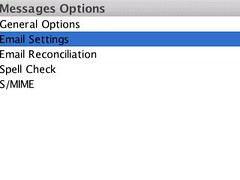
  3. Click Options
  4. Click Email Settings
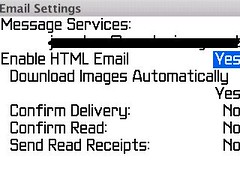
  5. *Enable HTML Email = YES.
  6. *Download Images Automatically = Yes


*If you don't see these options, it is likely that your service books have not been updated. You may need to do a "hard reset" on your BlackBerry by removing the battery from the device with it powered ON, hold a few seconds, and replace the battery to reboot.

D. Receive an email on your device, and enjoy HTML.
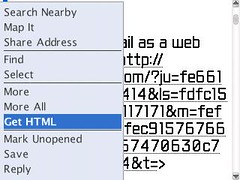
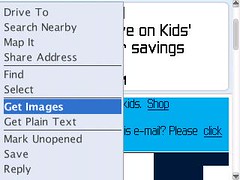
  1. After opening your email, tap the Menu key and select "Get Images".
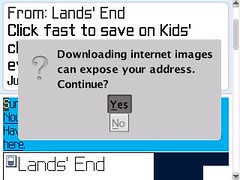
  2. Click YES to the warning message that "internet images can expose your address"...
  3. You will need to click "Get Images" on each email on which you wish to view images.
*Emails received before your upgrade will not be viewable in HTML, only those received after.

NOTE: Some users have reported the HTML images would not appear until they had their TCP/APN settings enabled. On your BlackBerry, look at Options > Advanced > TCP. If the settings are blank, follow the instructions in this link to set yours and save the settings. You may need to remove the battery on your BB and reboot after entering the APN, etc., in order for it work.


**Further Note: If you have performed all of the above instructions, and still don't see HTML email options on your mail,
OR, your HTML email has worked, and stopped working, try this:
1. Remove your email account from the BIS.
2. Delete your Service Books on the BB. (Options > Advanced > Service Books) Delete those pertaining to your email containing the @ symbol and your email address.
3. Remove battery and reboot the BB.
4. Confirm the Service Books are not on the BB.
5. Reset the account on your BIS.
6. Resend the Service Books from your BIS.
7. You should get a Registration message from AT&T, on your BB. If not soon, pull the battery and reboot the BB again.
8. Turn on your HTML email again from you Message options.

Saturday, December 18, 2010

Hacking BlackBerry Apps for Dummies Volume 2 - Using WinHex

This is a step by step guide on how to use WinHex and get your serials.


This is will give everyone all the information needed to get them yourselves.

For anyone who asked to get the Serials for you, well I wish I could but unfortunatelly there have been to may requets and not enough time in a day.

I hope this Tutorial will help everyone, I read a bunch of tutorials online and I was more lost then when I started.

This will give you visual guidance on what to do.

Please post if you have any suggestions on how to make this tutorial better or easier to use, and if it has help you.


Use the DMPClean.bat in between Apps to clear the Simulator memory. You need to copy this file in the Simulator directory, then you can create a shortcut and place it on your desktop for easy access


Please DO NOT PM for Codes... Post them and whom ever has time will assist you....


Reputation point always appreciated........

With that said Enjoy! and good luck!

Creator69

Hacking BB for Dummies Volume 2.zip
dmpclean2.zip